Customize the Live Chat Advanced flows
The Live Chat Advanced solution keeps two conversations in sync during a live chat: the conversation with the client and the conversation with the helpdesk agent. Each flow in the solution handles one event in the Live Chat. Customize these flows to change messages, the data collected, and the actions available to agents.
The flow descriptions below match the Live Chat Advanced solution. To open a flow, go to Solution Contents > Flows and select the flow name.
Client-side flows
On the client side, the Live Chat Advanced flows add the client to the waiting queue, keep the client informed while they wait, and collect feedback when the live chat ends.
 Add the client to the waiting queue (live-chat-connect-to-agent)
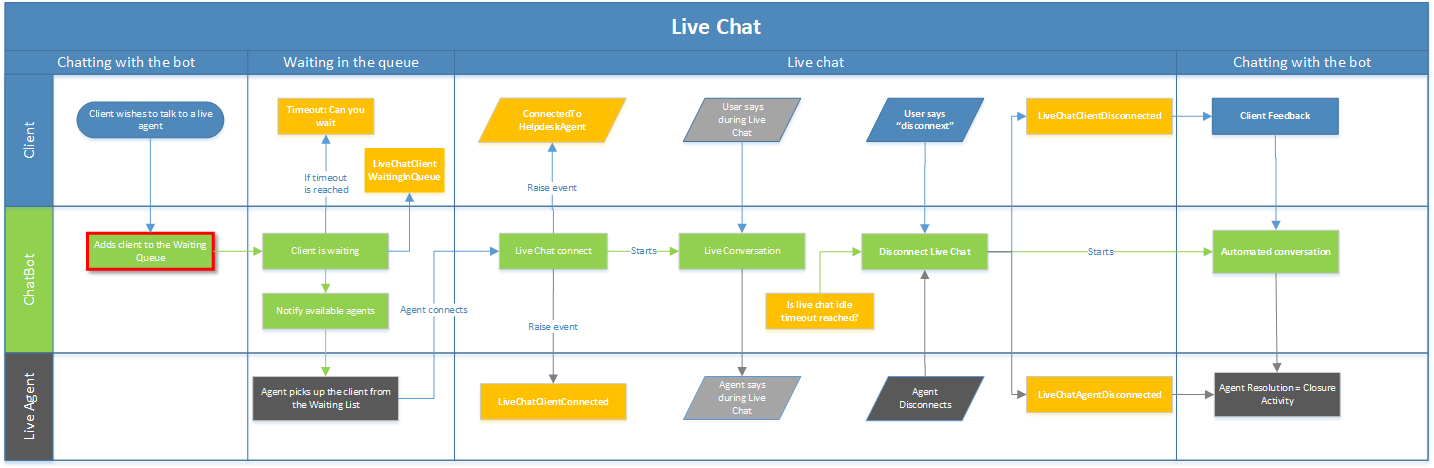
The live-chat-connect-to-agent flow runs when the client asks to talk to a person. Training phrases include "agent", "Live Chat", and "I would like to talk to a consultant". You can also trigger it from your Intent not found flow.
The flow has these steps:
- S1 GDPR Agreement (Choice). Tells the client that the conversation is recorded and asks for consent. The answer is stored in
@UserChoice. - If the client doesn't agree, DonTAgree tells the client that they can ask again later and shows the menu. The client stays with the AI Agent.
- If the client agrees, Client chooses queue asks which queue to transfer to and stores the answer in
@queue. - trigger-save-chat-activity-data runs the
live-chat-save-activity-dataflow, which saves the client's chat activity data. - S2 Connect to helpdesk agent sets
[[ChatUser]].HelpdeskSubjectto "Live Chat" and[[ChatUser]].Name, then calls theConnectToHelpdeskAgentinternal action with@queue. The client is added to the waiting queue of that queue.
You can customize:
- The messages. Edit the step and change the Step message in each language.
- The queue choice. Edit the choices on Client chooses queue to match your queue codes. To always use one queue, remove the step and pass the queue code to
ConnectToHelpdeskAgent. See Queues, agents, and automatic allocation. - The data shown to the agent. Edit the Set Variables section of S2 Connect to helpdesk agent.
[[ChatUser]].HelpdeskSubjectappears in the agent's waiting list.
Notify clients while they wait (live-chat-waiting-message-in-the-queue)
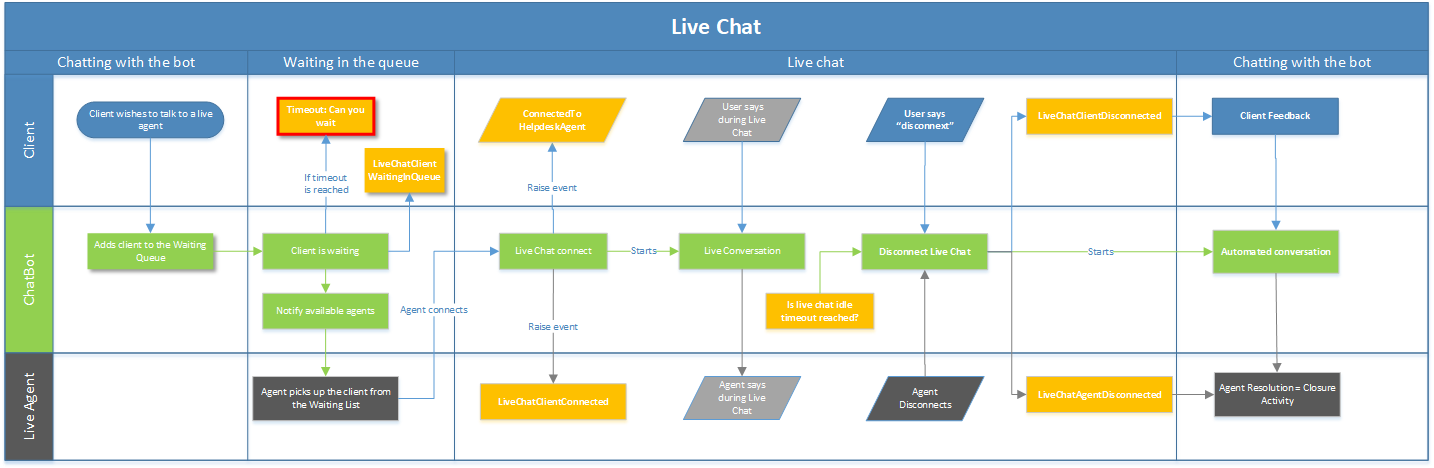
Druid triggers the live-chat-waiting-message-in-the-queue flow when Live chat queue waiting timeout mins is reached, and then every minute while the client is in the waiting queue. The flow keeps the client informed and lets them leave the queue.
The flow has these steps:
- S1 Verify Queue Counter checks how many times the flow has run for this client.
- On the first run (Counter null), S2 tells the client their position in the queue (
[[HelpdeskClient]].PositionInQueue) and asks whether they want to wait. - If the client wants to wait, S3 confirms that an agent will join shortly. - If the client doesn't want to wait, it removes the client from the queue. If removal fails, Result false tells the client. If it succeeds, Result true offers the menu. - On later runs (Counter 1,2), the flow continues without asking again.
- Disconnect due to inactivity removes the client from the queue when they don't respond.
You can customize the messages of steps S2, S3, Result false, Result true, and Disconnect due to inactivity. To change when the flow starts, change Live chat queue waiting timeout mins in the AI Agent Set up Live Chat.
Collect the client's feedback (live-chat-feedback-client)
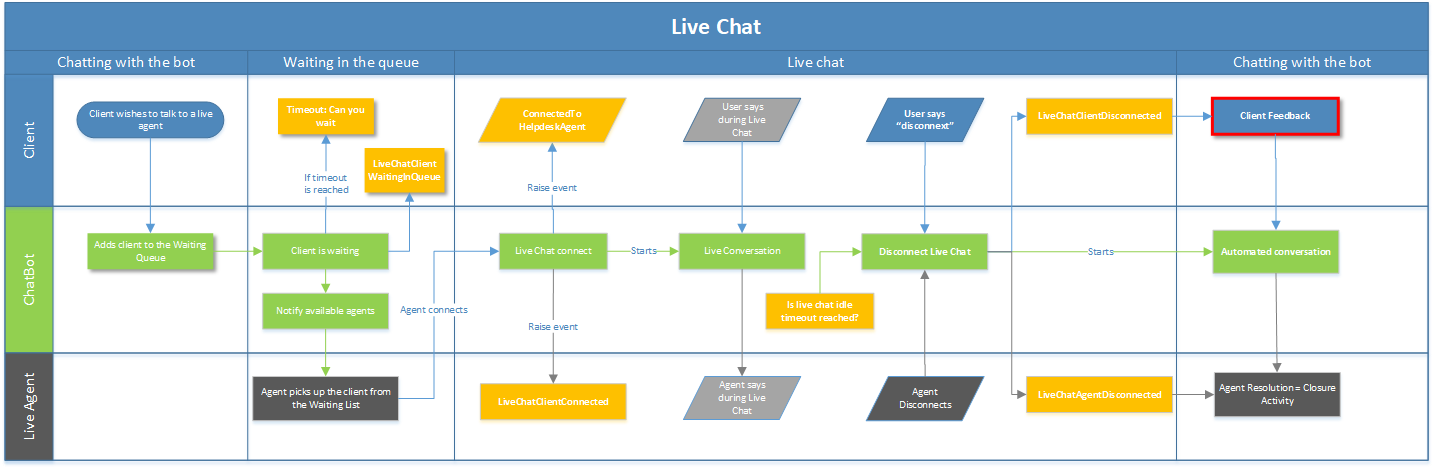
The live-chat-feedback-client flow is the Live chat client disconnected flow. It runs when the live chat ends for the client.
The flow has these steps:
- S1 Verify conversation status checks how the conversation ended. If no feedback is needed, the flow stops.
- initialize-chat-activity-data-feedback-live-chat prepares the chat activity record.
- S1 asks the client to rate the agent's support from 1 (very poor) to 5 (very good) and stores the answer in
[[ChatActivityData]].FeedbackLiveChat. - save-activity-data saves the feedback.
- End Message - Erase CRM_Request thanks the client.
You can customize the rating question and choices, or add more questions. Store each answer in a [[ChatActivityData]] field so that you can report on it.
Agent-side flows
On the agent side, the Live Chat Advanced flows prepare the agent page, confirm the connection to the client, and capture the agent's resolution when the live chat ends.
Prepare the agent page (live-chat-client-connected)
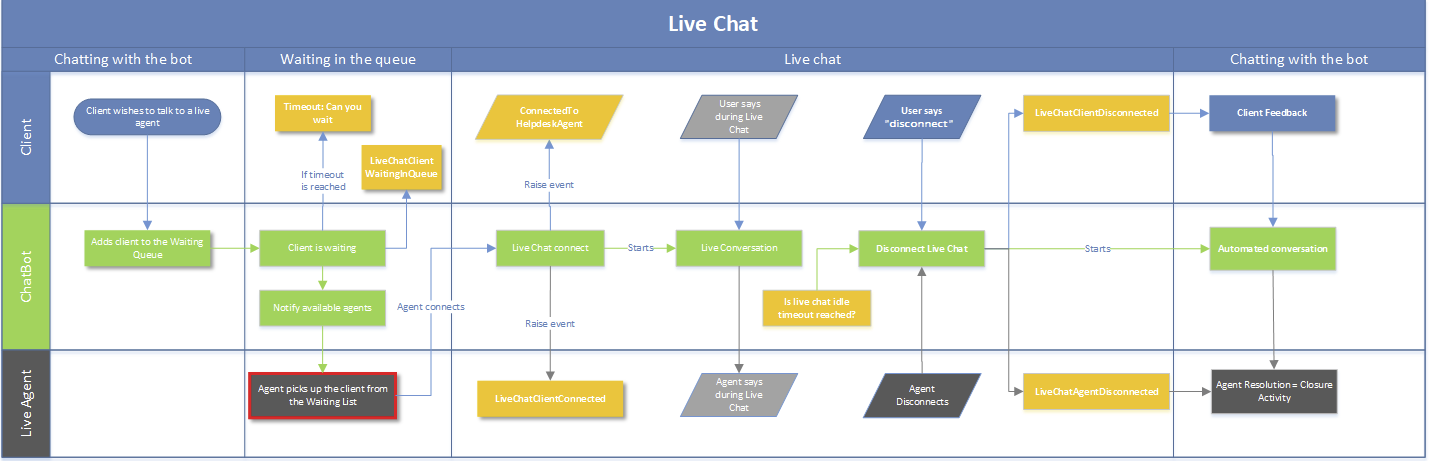
The live-chat-client-connected flow is the Live chat client connected flow. It runs when an agent picks up a client from the waiting queue.
The flow has these steps:
- read-chat-data reads the client's chat activity data.
- S2.1 Fill in HelpdeskClient basis conv id links the client's conversation to the helpdesk session.
- BackChannelErase Data (backchannel event) removes the client from the waiting list.
- S2.3 Update start Conversation saves the agent name and the start time of the live chat.
- add-client-info (backchannel event) adds client information and action buttons to the agent page.
- S2.3.2 Connected with client internal action connects the agent with the client.
- S2.3.3 tells the client "You are now connected".
You can customize:
- The agent page elements. Edit the JavaScript in the Step message of add-client-info. See Multichat for helpdesk agents.
- The client information shown to agents. Edit Set Variables on add-client-info.
- The message to the client. Edit the Step message of S2.3.3.
- The data saved for reporting. Edit Set Variables on S2.3 Update start Conversation.
Add web views and forms to the agent page
Agents can open web views and forms from the agent page, for example to update records in a Conversational AI Applications while they talk to the client. To add a tab, include the following code in the add-client-info step:
// Load the side panel (call at the start, or inside handleIframeLoad()).
this.loadLeftContent('left-content');

var customButtons = [
  {
    'icon': "fa-info",            // Font Awesome icon code
    'title': "<View or form title>", // Shown when the agent hovers over the tab
    'url': "<URL of the view or form>"
  }
];
this.loadCustomButtons(customButtons);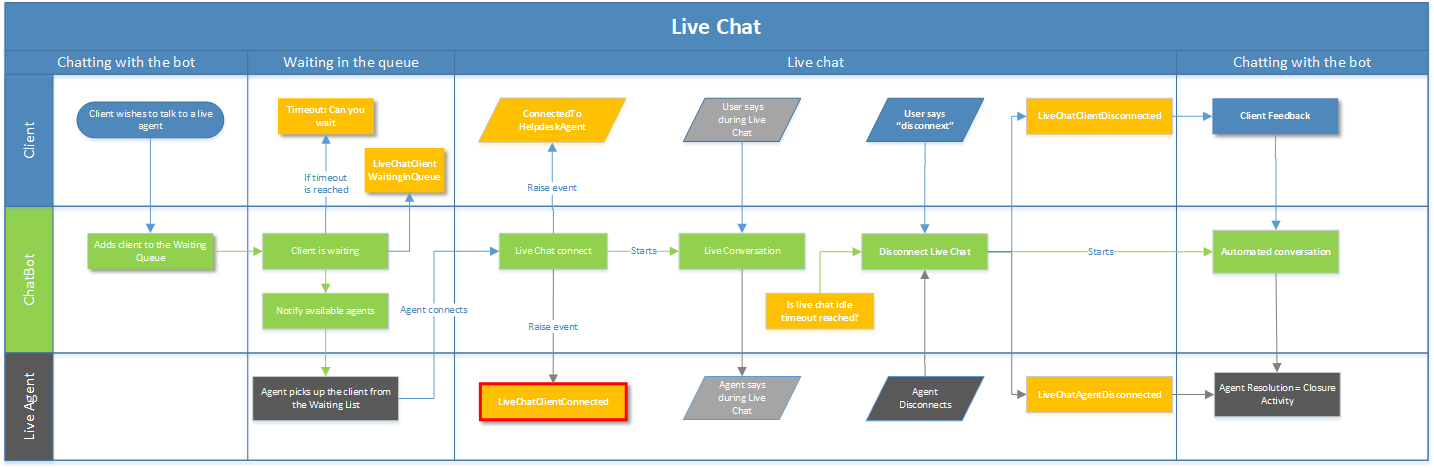
The live-chat-connect-agent-to -waiting-client flow runs after an agent picks up a client. It tells the agent whether the connection succeeded.
- S1 Add internal action calls the
ConnectToHelpdeskClientMultichatinternal action. The result is stored in@InternalActionResult(Boolean). - If the result is
true, S2 Connected successfully tells the agent "You are now connected with a customer", and the HelpdeskClientConnected backchannel event updates the agent page. - If the result is
false, S2 tells the agent that the connection failed, and the HelpdeskClientNotConnected backchannel event updates the agent page.
The backchannel steps receive [[HelpdeskClient]] in Input mapping. You can customize the messages of both outcomes.
Run automation before the agent connects
Before the ConnectToHelpdeskClientMultichat internal action runs, [[HelpdeskClient]] contains the following fields. Use them to run automation before the agent and client connect, for example to change the agent name or greeting based on the client type or queue.
[[HelpdeskClient]] field |
Value |
|---|---|
Subject
|
[[ChatUser]].HelpdeskSubject from the client conversation |
ClientName
|
[[ChatUser]].Name from the client conversation |
QueueCode
|
The code of the client's queue |
EnqueuedAt
|
When the client entered the queue |
DruidActivityId
|
[[ChatUser]].ActivityId from the client conversation |
TenantUserId
|
The client's tenant user ID |
Capture the resolution and end the live chat (live-chat-agent-disconnect)
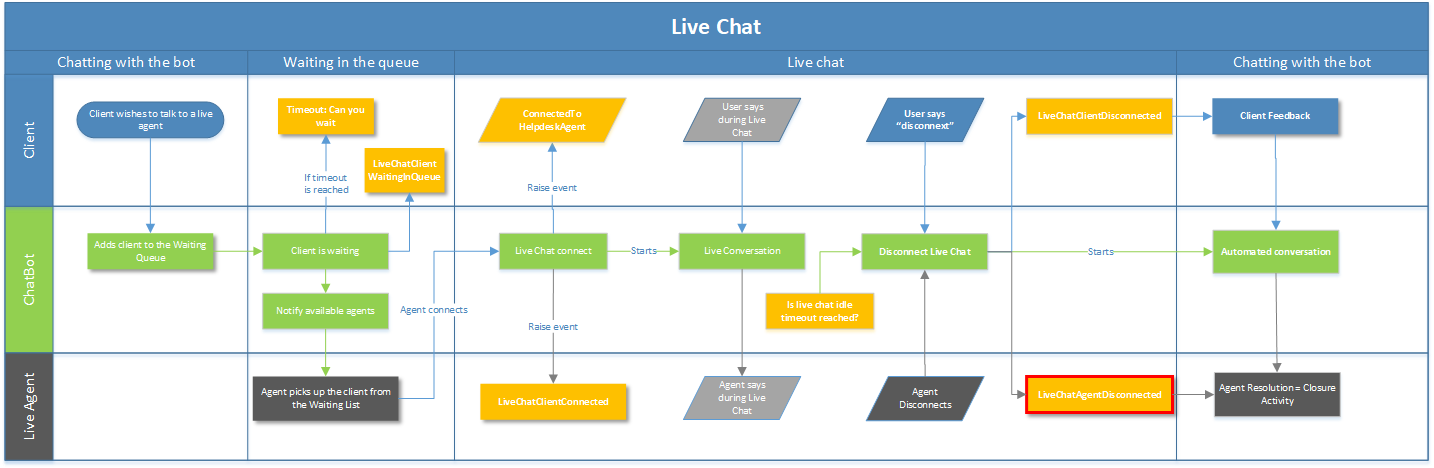
The live-chat-agent-disconnect flow is the Live chat agent disconnected flow. It runs when the agent disconnects or the live chat times out.
The flow has these steps:
- verify-conversation checks the conversation status.
- S2 Read chat Resolution reads the resolution options.
- BackChannel-ChatClosed (backchannel event) shows the closing activity on the agent page.
- S6 Set user conversation history asks the agent to choose a resolution and stores it in
[[ChatActivityData]].AgentResolution. - save-activity-data confirms the resolution to the agent and saves it.
- close-activity-data closes the chat activity record.
- End Conversation calls the
EndLiveConversationinternal action, which ends the live chat, removes it from the agent's list, and logs the chat activity.
You can customize the resolution options on S6 Set user conversation history and the layout of the closing activity on BackChannel-ChatClosed.
If you upgraded from an older version: older configurations end this flow with a DisableChat backchannel step. Replace it with an Action step that calls EndLiveConversation in Pre Actions or Post Actions. EndLiveConversation replaces DisableChat and logs the chat activity correctly.
Find out why the live chat ended
In this flow, [[ChatUser]].ConversationStatus tells you how the live chat ended:
ConversationStatus value |
Meaning |
|---|---|
AgentDisconnected
|
The agent selected Disconnect. |
ConversationTimeOut
|
The live chat reached Live chat conversation idle timeout mins. |
For example, add a branch with the condition [[ChatUser]].ConversationStatus == "ConversationTimeOut" to handle timeouts separately.
Related Topics